Music usage reports for DaVinci Resolve Studio
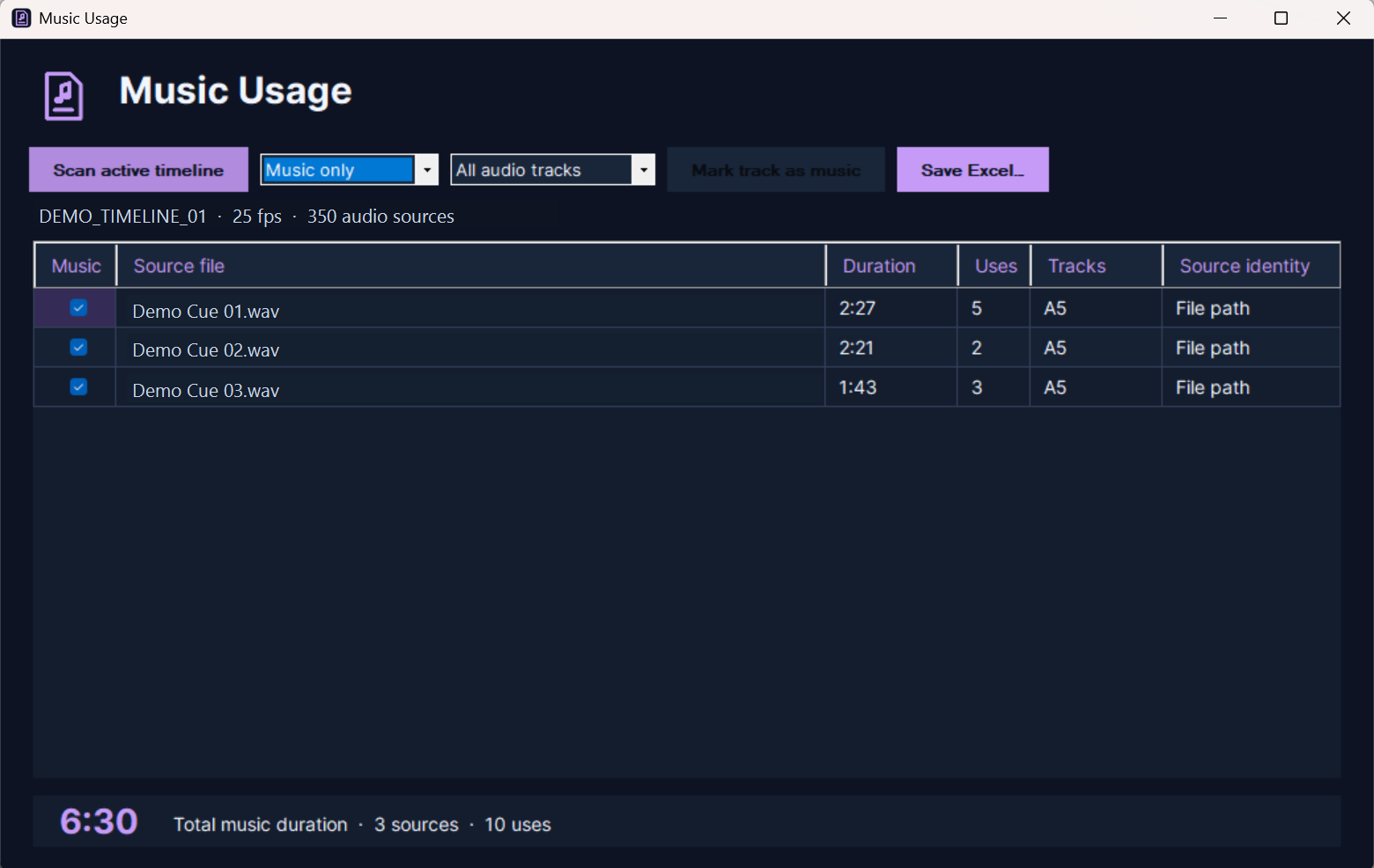
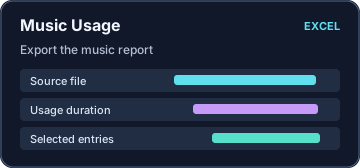
€19 one-timeMusic Usage reads the active DaVinci Resolve Studio timeline on Windows, groups music by source file, and totals how long each file is used. Filter by audio track and export selected entries to Excel. One-time activation works offline.
Your activation code is sent to the email address you enter at checkout.
Compatibility · Windows 11 (x64). Requires DaVinci Resolve Studio to read the active timeline.
Review the selection
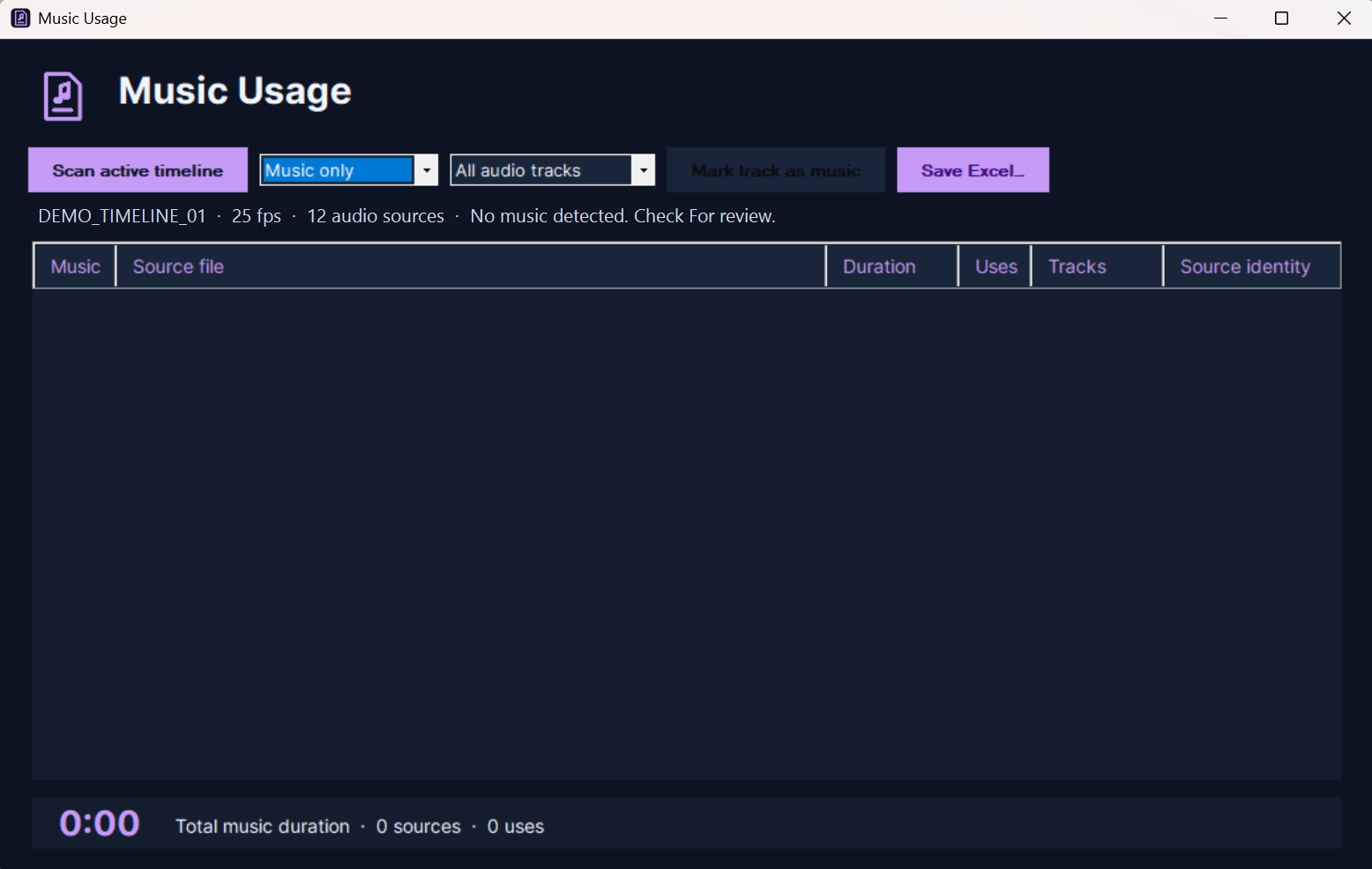
Music Usage identifies likely music using track, folder, and file names. You can adjust the selection before exporting.
What the report includes
The report summarizes music usage by source file and omits rights-holder metadata.
Quick Start
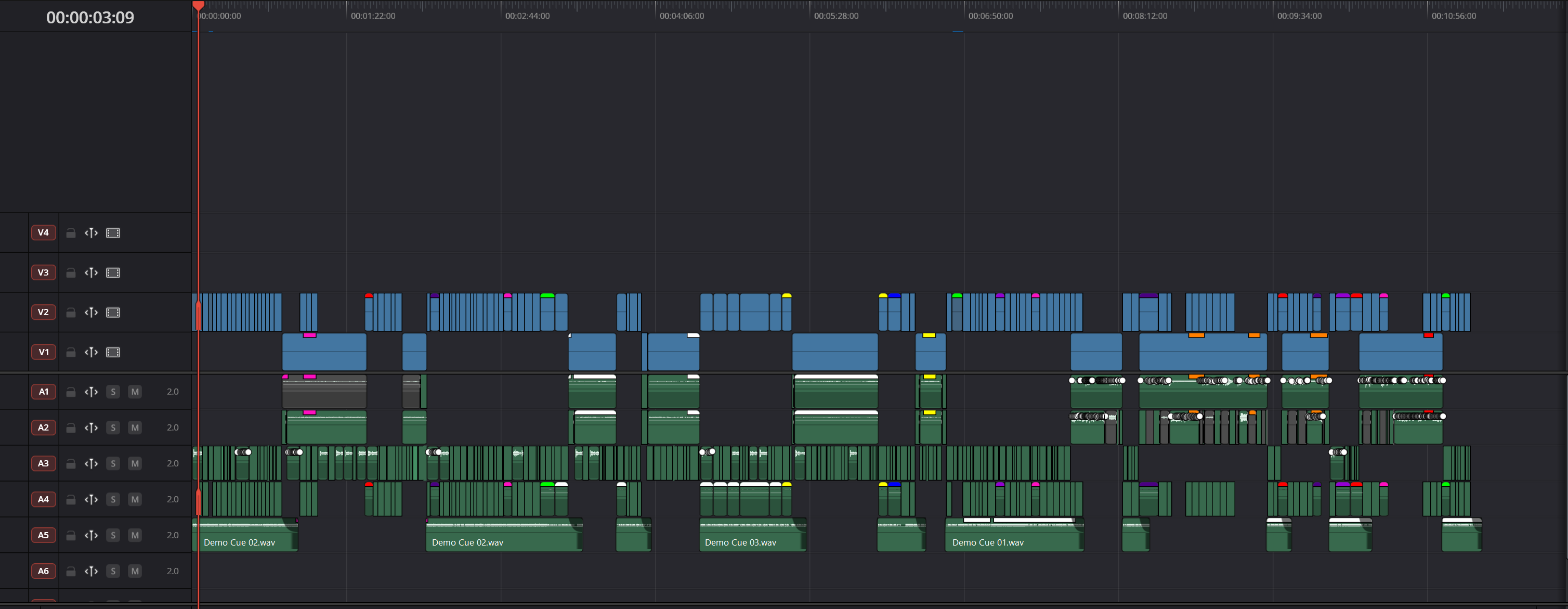
- Open the timeline you want to report on in DaVinci Resolve Studio. Start Music Usage and click Scan active timeline after switching timelines or making edits.
- Review the detected sources. Use For review to check uncertain entries, or choose an audio track and click Mark track as music to include it.
- Click Save Excel… and choose where to save the report. Review the durations and add any rights information you need before handing it off.
Workflow illustrations
Screenshots
Project and media names shown are examples.